


Motorcycle Support Hub
Master firmware resources, technical manuals, and upgrade tools for Aoocci Motorcycle gear.
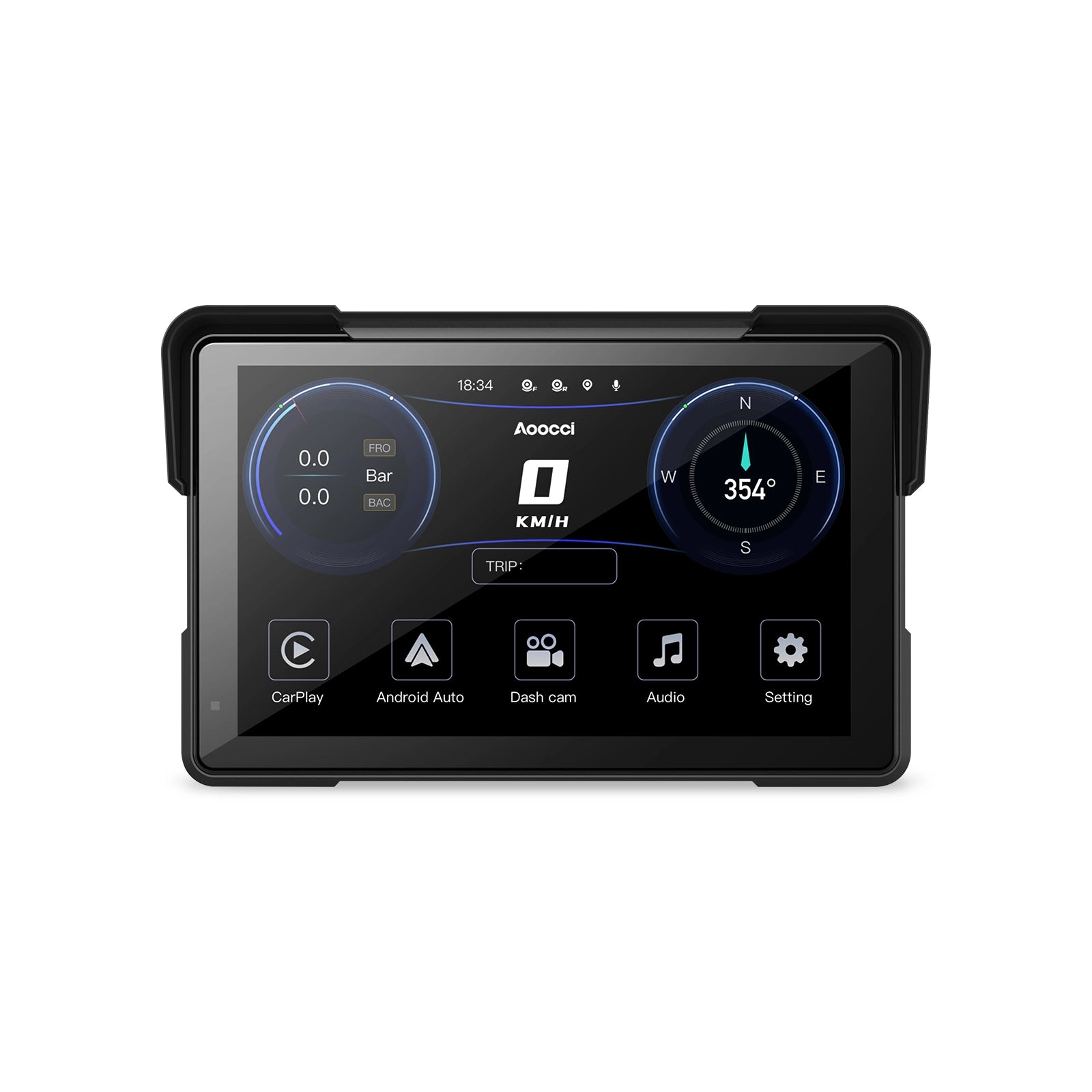
Check System Version & Download
How to Find Your System Version
- Open the device menu.
- Tap Firmware version.
- Check the beginning of the system version number: D7A- or D7B-. That prefix identifies your firmware family.
D7A-
D7A Firmware Family
For system versions beginning with D7A-.
No Download AvailableD7B-
D7B Firmware Family
For system versions beginning with D7B-.
Download D7B FirmwareNot sure which version you have? Do not install an update. Contact Aoocci Support and send a clear photo of the Firmware version screen.
D7B Firmware Upgrade
These upgrade steps apply only to system versions beginning with D7B-. D7A currently has no downloadable firmware package.
- Format the microSD card on the machine (dash cam) first.
- Record a short video, then remove the card and insert it into a PC.
- Copy the upgrade files directly to the root directory of the microSD card.
- With the machine OFF, insert the microSD card.
- Power on the machine (connect it to a 12V power source). Two indicator lights will stay on while updating.
- Wait for the update to finish. The machine will restart automatically and play a startup sound.
- Important: Delete the upgrade files or format the card again after the update is complete.
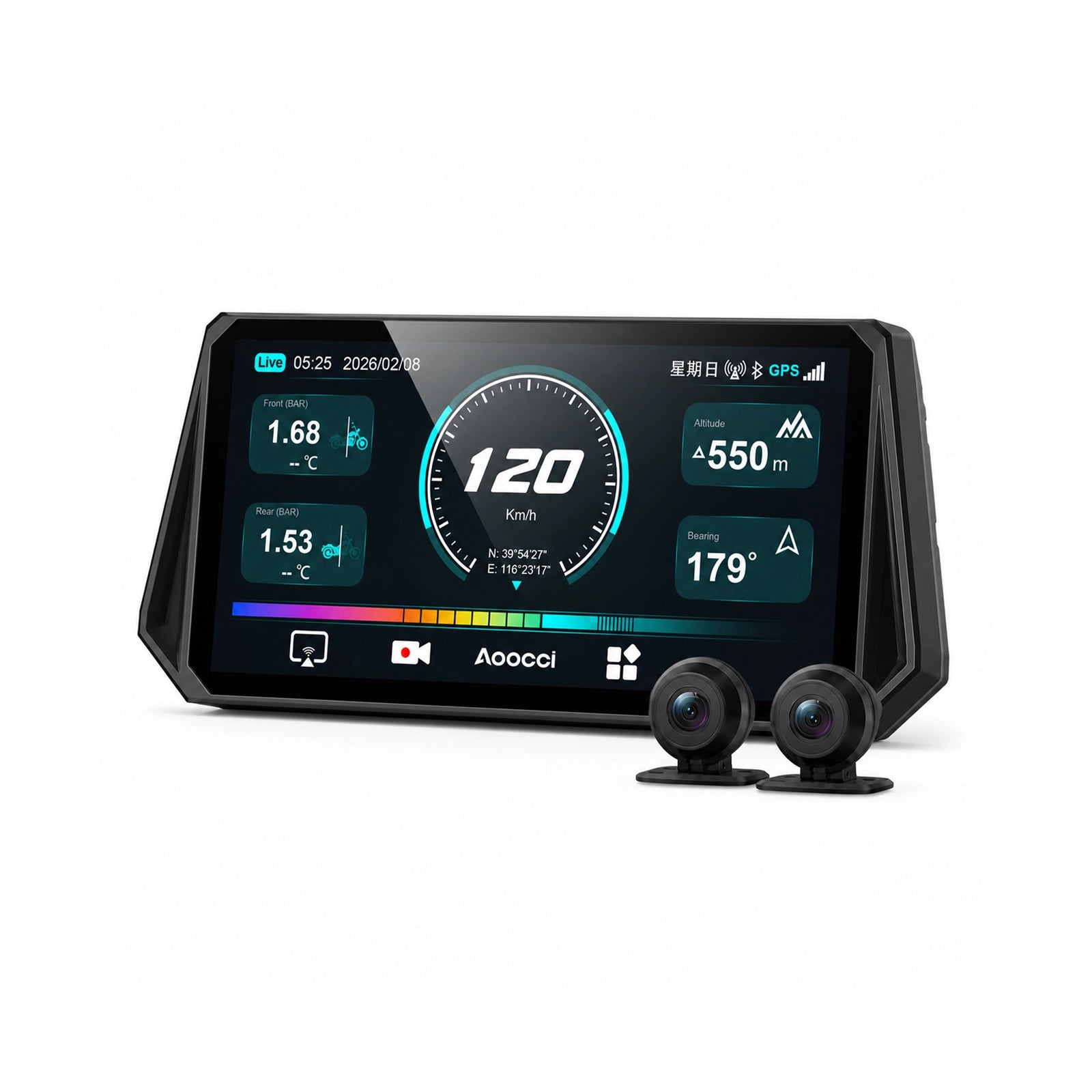
D6A Navigator
Guide & Tools
Update method: D6A uses the PhoenixCard upgrade process.
Download Burning Tool (PhoenixCard)
Follow the PhoenixCard video and step-by-step guide below.
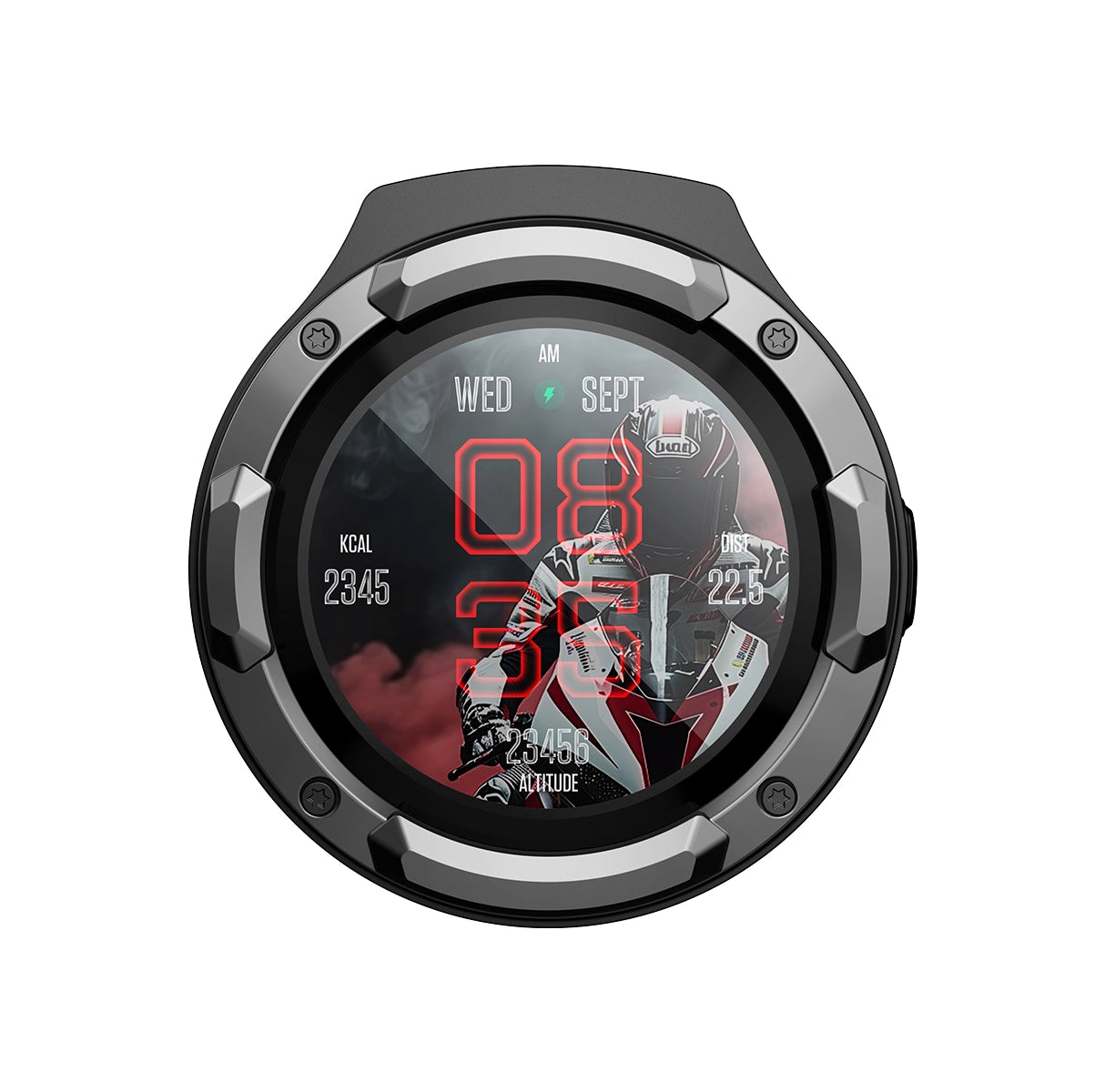
OTA Firmware Upgrade
Latest firmware: V0.1.7. For release notes and update history, view the Firmware Update Log.
How to Upgrade:
- Open the Goridenav app on your phone.
- Select Add Device.
- Open Firmware Upgrade.
- Tap Upgrade Now and keep the device connected until the update finishes.
Important: NAV 1 has no physical firmware port and can only be updated over the air (OTA). No downloadable firmware package is provided.
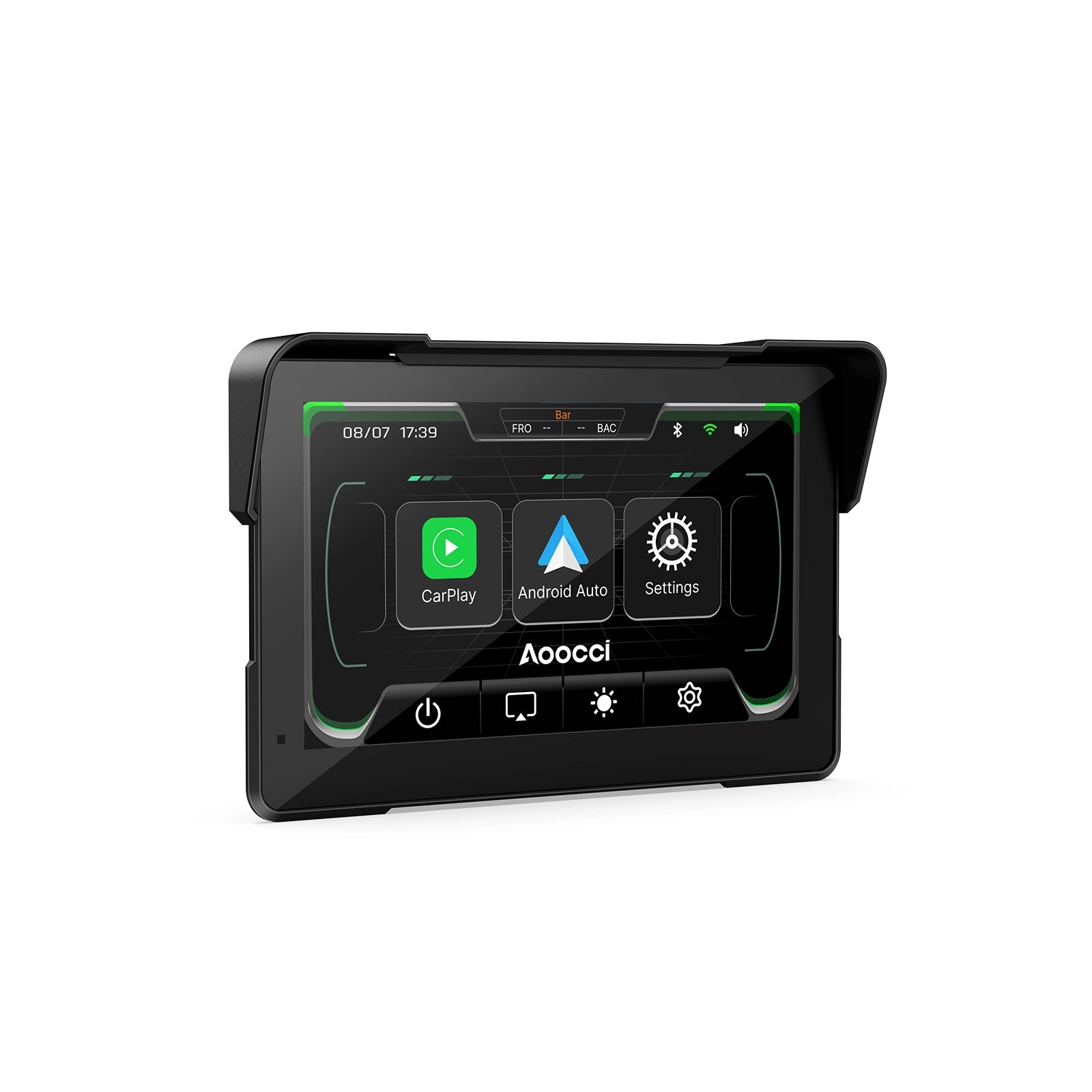
C7 Smart Display
Check System Version & Download
How to Find Your System Version
- Open the device menu.
- Tap Firmware version.
- Check the beginning of the system version number: C7- or C7B-. That prefix identifies your firmware family.
C7-
Original C7 Firmware
For system versions beginning with C7-. V20260104 fixes Bluetooth connectivity issues.
Download V20260104C7B-
C7B Firmware Family
For system versions beginning with C7B-.
No Download AvailableNot sure which version you have? Do not install an update. Contact Aoocci Support and send a clear photo of the Firmware version screen.
PhoenixCard Upgrade — C7 / C7B
The upgrade steps are the same for C7 and C7B. Always use the firmware file that matches your system version prefix.
Tools Required: PhoenixCard Software
Follow the PhoenixCard video and step-by-step guide below. C7B currently has no downloadable firmware package; do not use a C7 file for a C7B device.

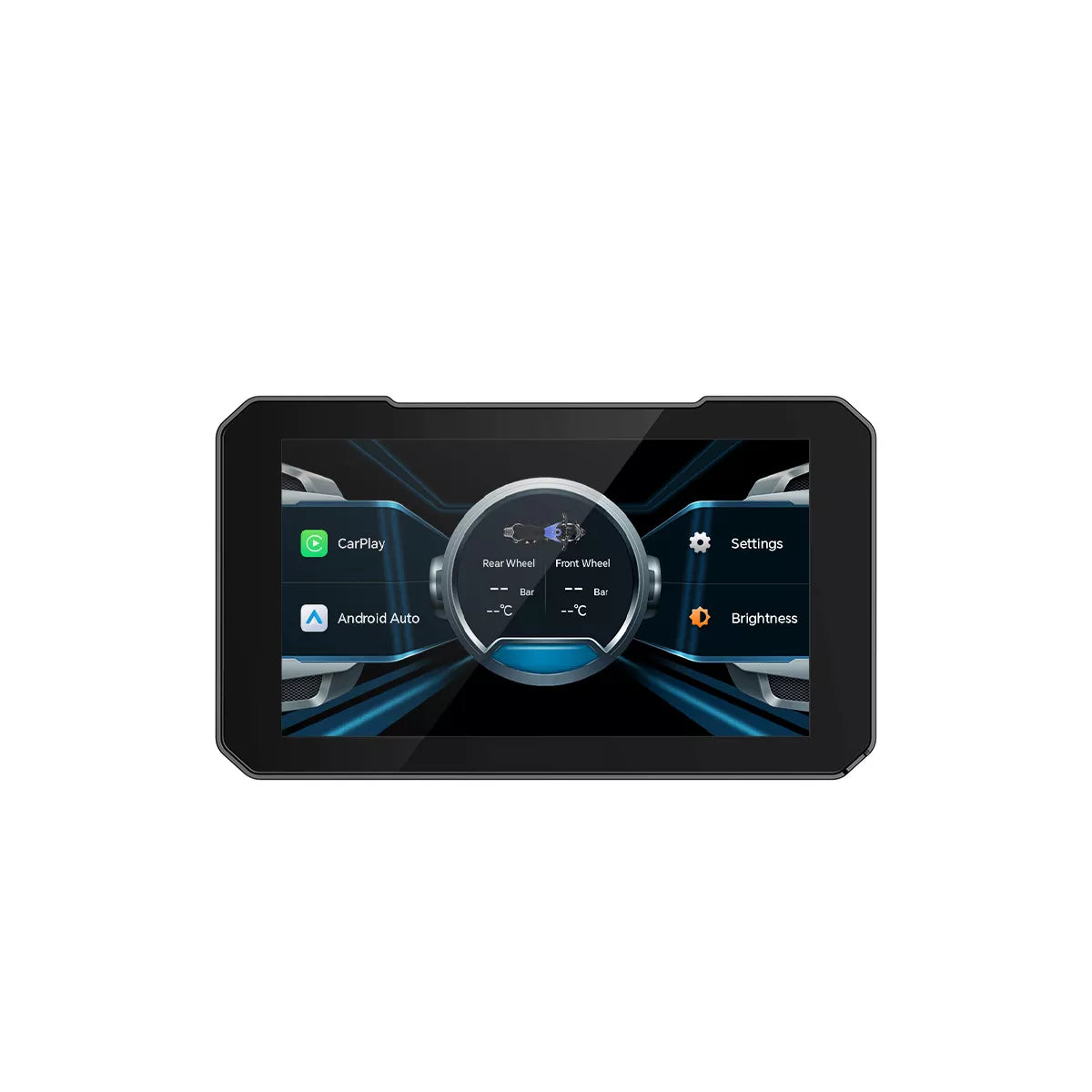
C3 Pro
Installation Guide & Tools
Tools: Burning Software (PhoenixCard)
Use the firmware linked for this model, then follow the PhoenixCard video and step-by-step guide below.
Latest Changelog: Updated startup screen (V20260417).
C3 Plus
Guide & Tools
Download Burning Tool (PhoenixCard)
Use the firmware linked for this C3 Plus model, then follow the PhoenixCard video and step-by-step guide below. Do not assume this package is compatible with another C3 variant.
Latest Changelog: Added Italian and Czech language support; updated the boot logo to the latest version; fixed known software bugs.

C4 Dashcam
Upgrade Instructions
How to Upgrade:
- Format the microSD card on the machine (dash cam) first.
- Record a short video, then remove the card and insert it into a PC.
- Copy the upgrade files directly to the root directory of the microSD card.
- With the machine OFF, insert the microSD card.
- Power on the machine (connect it to a 12V power source). Two indicator lights will stay on while updating.
- Wait for the update to finish. The machine will restart automatically and play a startup sound.
- Important: Delete the upgrade files or format the card again after the update is complete.
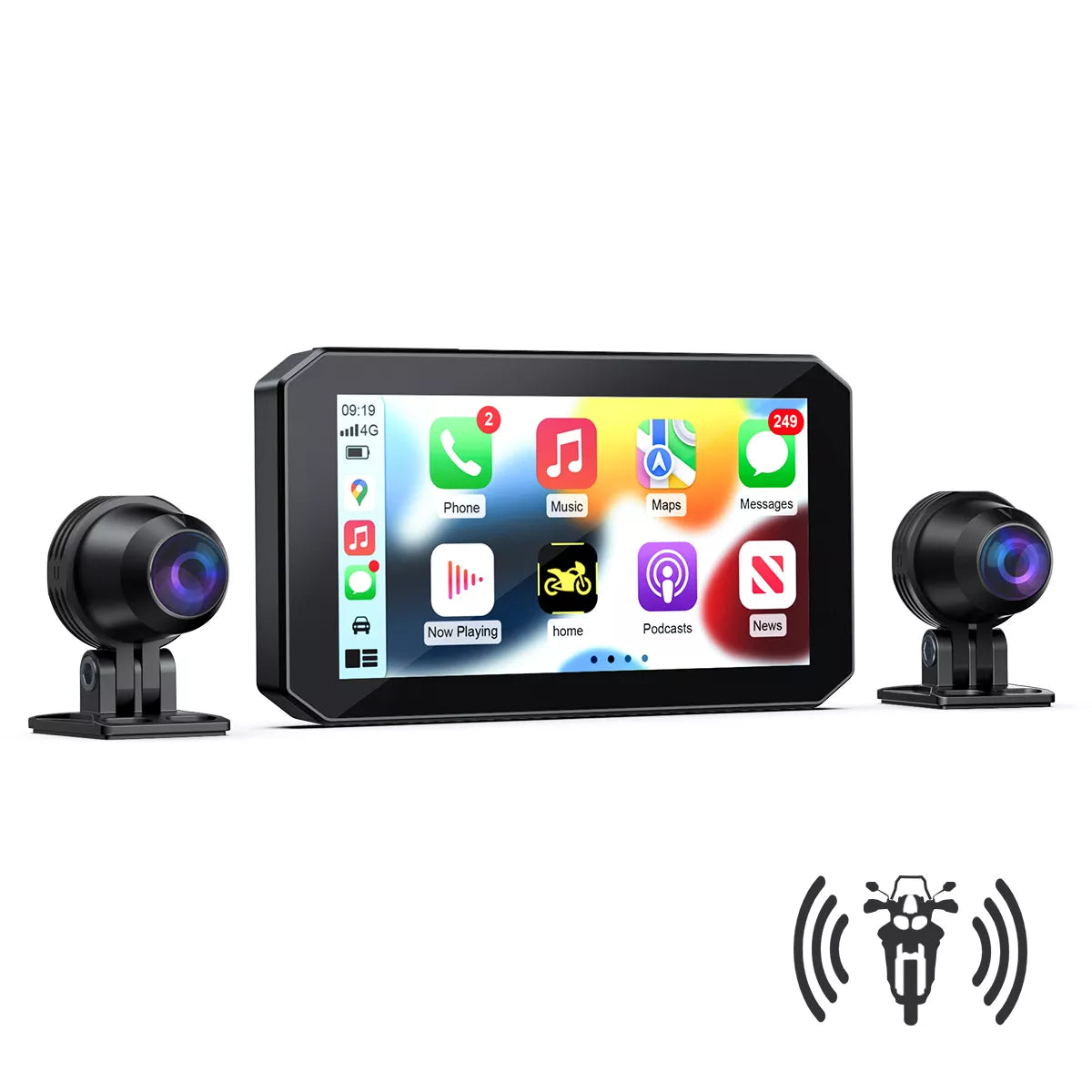
BX GPS Dashcam
Guide & OTA Instructions
Latest Changelog (v0.2.6 - 2026/04/15):
- Added Greek language support.
- Updated boot logo.
- Added visual progress indicator for future firmware updates.
- Optimized TPMS stability and video locking function.
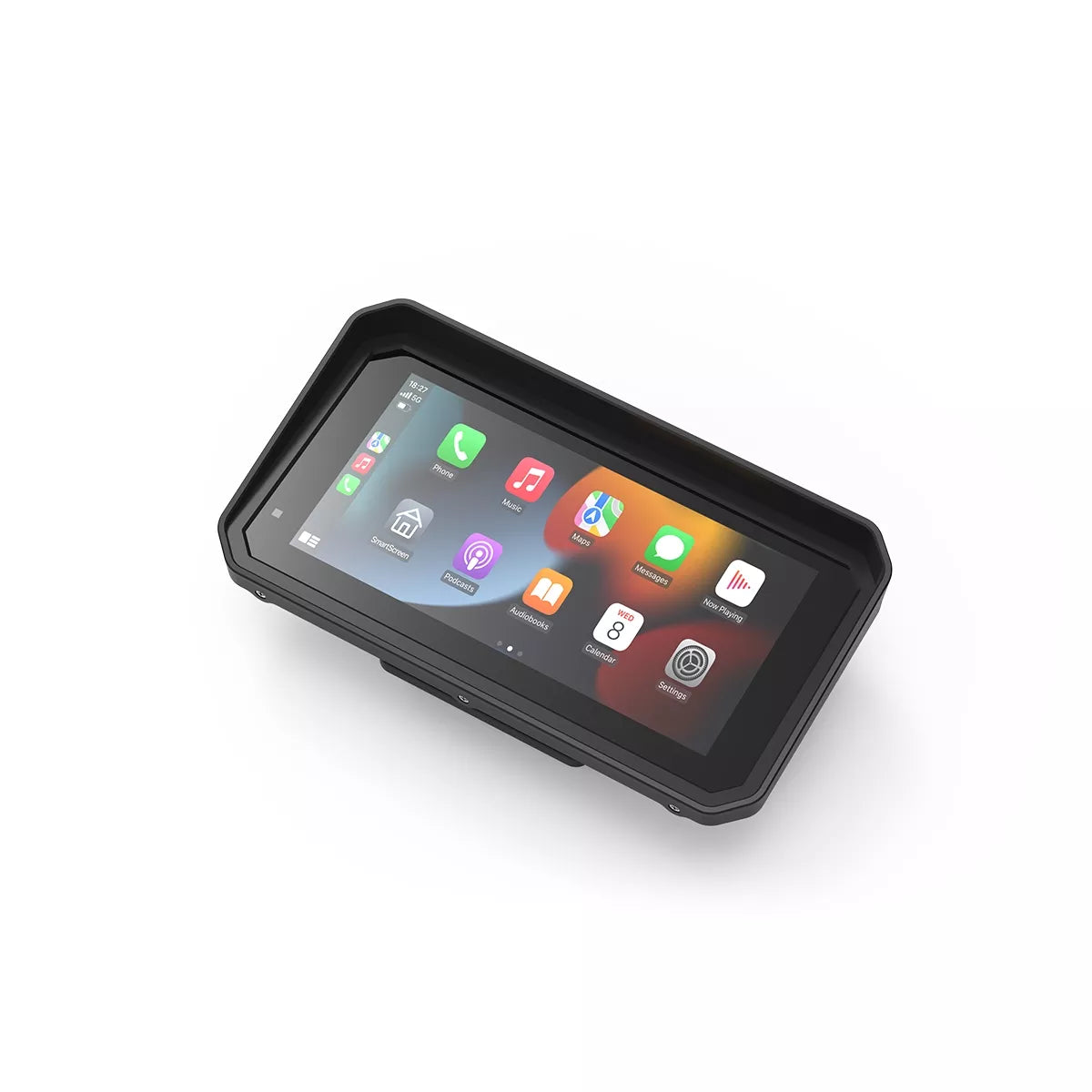
BM6 Premium
System Version & V1.0 Firmware
Check Your System Version
- Open Settings on the BM6.
- Select Firmware version.
- If the version number contains V2.0, use the V2.0 download above. If it does not contain V2.0, your system is V1.0 and requires the legacy firmware below.
V1.0 firmware: Download V20260109
Latest V2.0 changelog (V20260804): Updated the Home screen logo and boot logo.
BM7 Premium
System Version & V1.0 Firmware
Check Your System Version
- Open Settings on the BM7.
- Select Firmware version.
- If the version number contains V2.0, use the V2.0 download above. If it does not contain V2.0, your system is V1.0 and requires the legacy firmware below.
V1.0 firmware: Download BM7 V1.0 Firmware

C6 Pro
Guide & Tools
Download Burning Tool (PhoenixCard)
After checking the purchase-date restriction above, follow the PhoenixCard video and step-by-step guide below.
Latest Changelog: Fixed an issue where Czech was missing from the language menu (V20260903).
Previous Changelog: Removed Traditional Chinese, added Portuguese language support (V20260319).
Previous Notes: Enhanced Italian language; Date format updated to D-M-Y; iOS 18 connectivity fix.

U6 / U7 Adapter
How to Update?
- Connect your device to Wi-Fi.
- Go to System Settings > Version.
- Click Check for Updates.
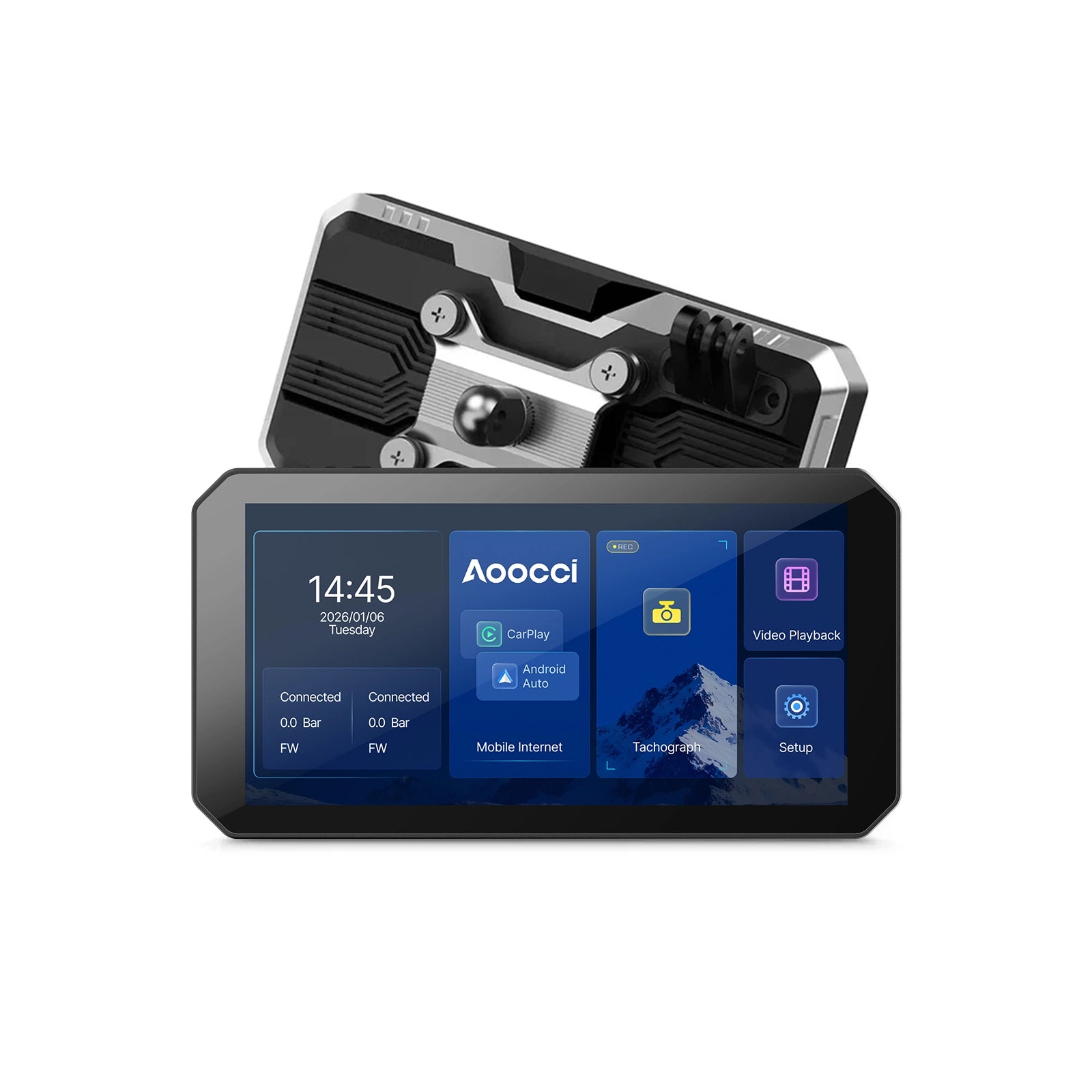
C9 Pro / C9 Pro Max
Choose the Correct C9 Firmware
Current Production — Tabbed Settings Interface
This is the interface used by current production and current shipments. Identify it by the top tabs, including DVR, Tire Pressure, and System.

Firmware: V20260525 — Download current-production firmware
Update method: OTA is supported. For an SD-card update, copy the matching firmware files directly to the SD card; PhoenixCard is not required.
Latest changelog: Optimized some software bugs.
Discontinued Limited Batch — App-Grid Interface
A limited interim batch shipped with the large app-grid Settings interface. That batch is sold out and discontinued, but its firmware remains available for customers who already own one.

Discontinued-batch firmware: Download discontinued-batch firmware
Update method: OTA is not supported. Use PhoenixCard Tools in "Product" mode to burn the firmware image to the SD card. Insert the prepared card into the device, then power it on to update. Follow the PhoenixCard video and step-by-step guide below for this discontinued batch only.
Not sure which C9 you have? Contact Aoocci Support with a clear photo of your Settings screen before installing firmware.
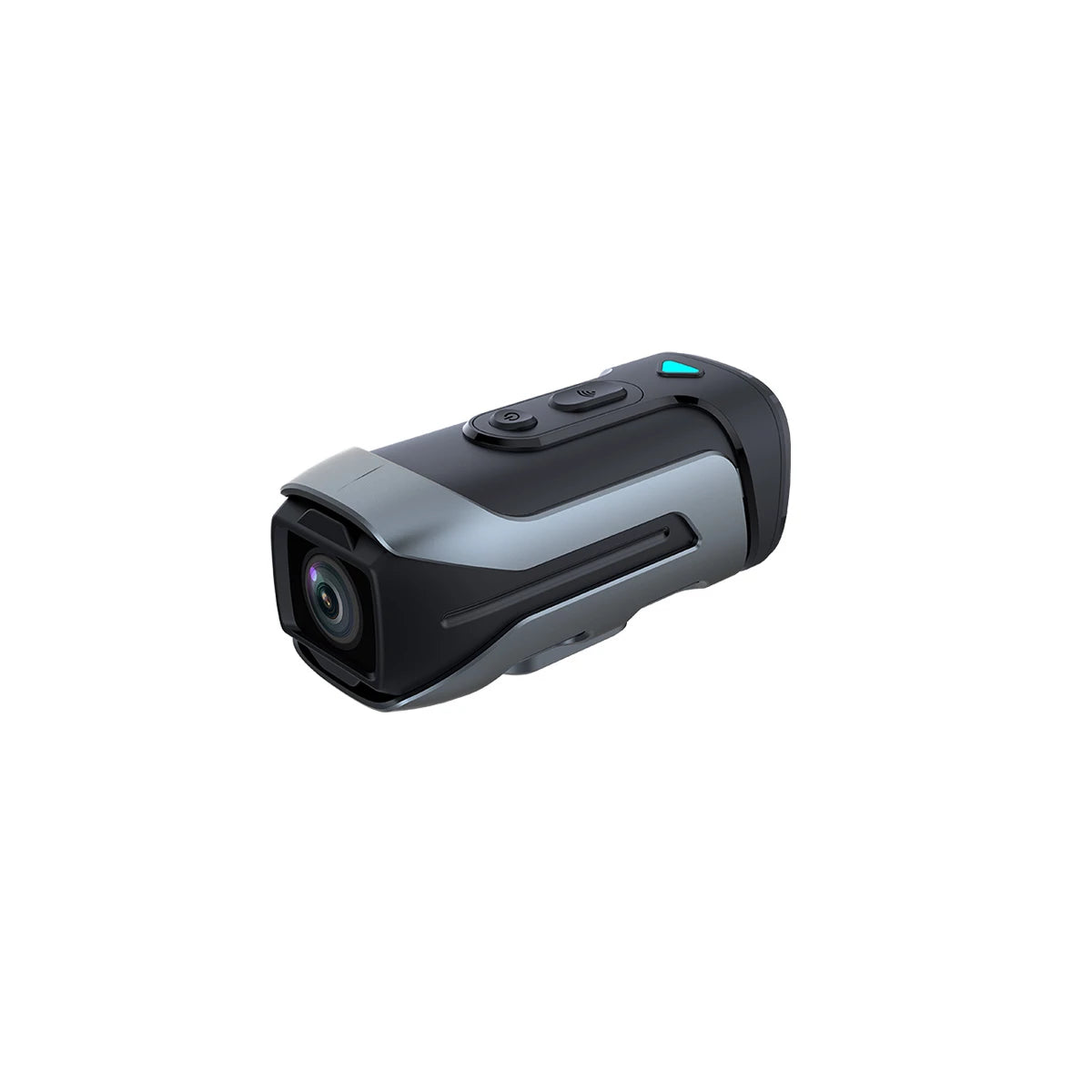
R2 4K Dashcam
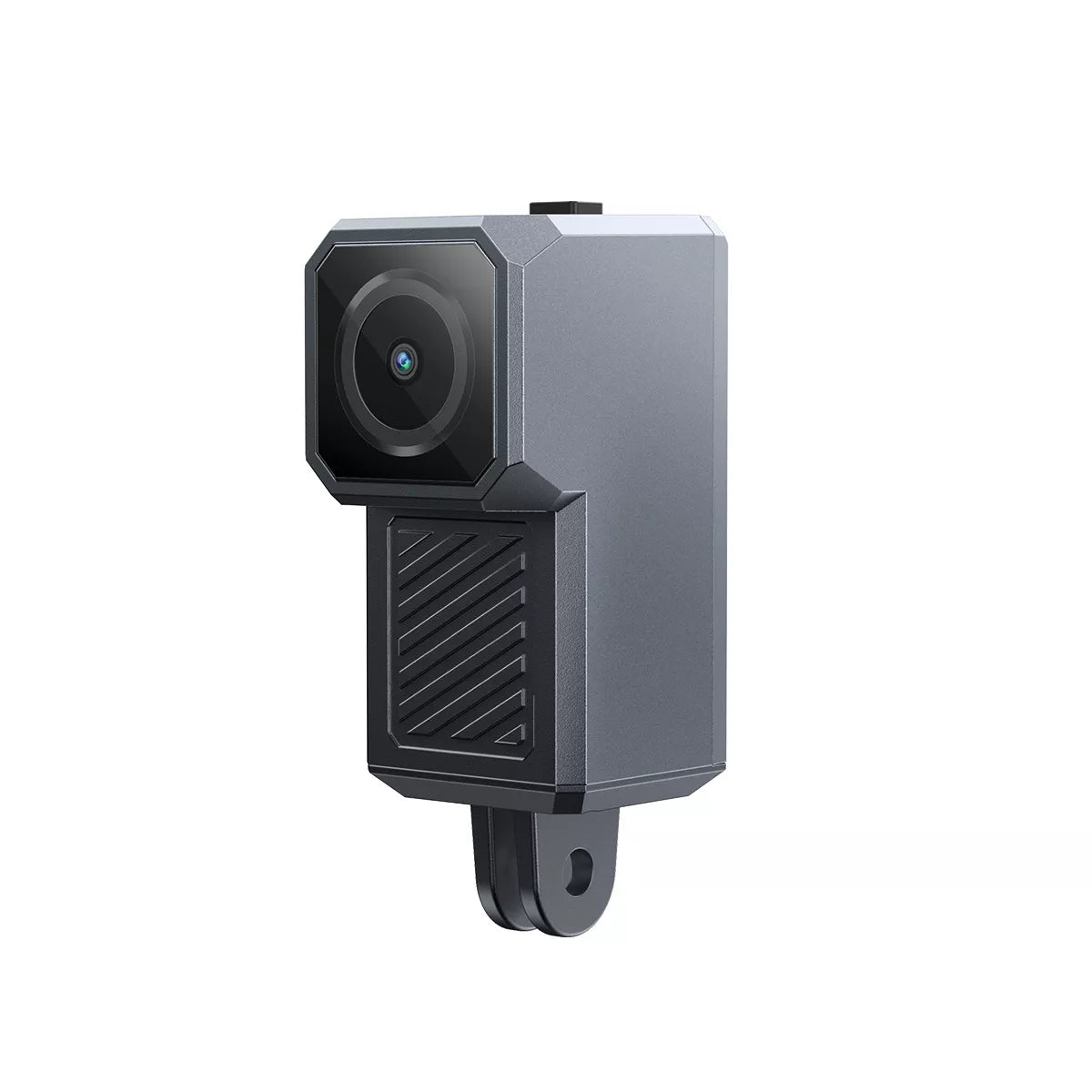
R1 (2K Edition)
Installation Guide & Release Notes
Guide: Upgrade Instructions Verbatim
- Added front camera inverted installation option.
- Added "R1" text watermark to video recordings.
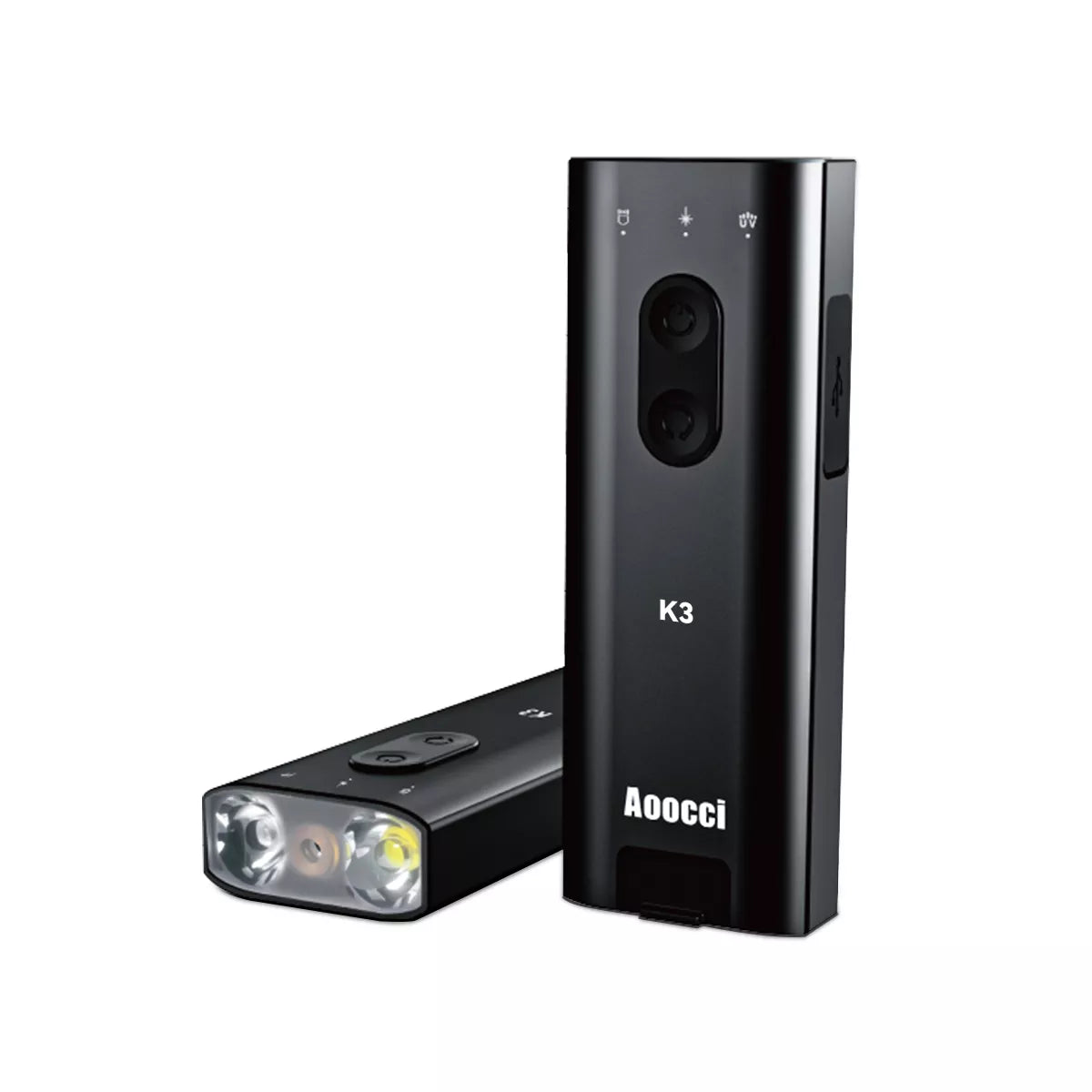
K3 Intelligent Flashlight

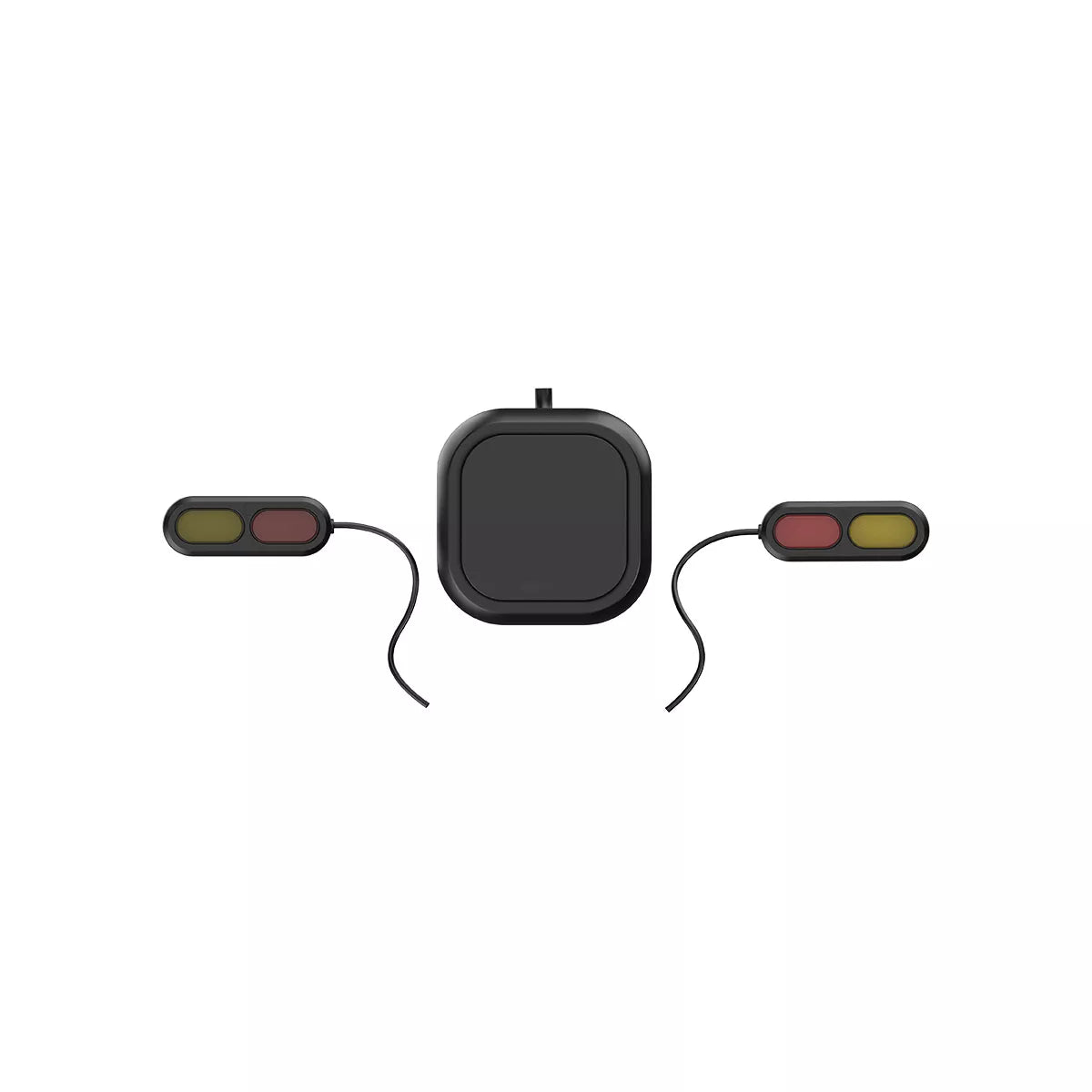
Microwave Radar BSD

BM5.5 Premium

C5 Pro Dashcam
PhoenixCard Firmware Update Guide
Use this guide only when your model's instructions call for PhoenixCard. It covers preparing the microSD card, updating the device, and restoring the card afterward.
Check applicability first
The model guides above link here for D6A, C7 / C7B, C3 Pro, C3 Plus, C6 Pro, and the discontinued C9 batch with the app-grid Settings interface. Check each model's firmware and hardware restrictions before downloading.
Current-production C9: Use its OTA or SD-card file-copy instructions instead.
D7 devices with a D7B- system version and C4 use SD-card file copy, while NAV 1 uses OTA. A
.img filename alone does not identify the update method.
PhoenixCard steps
Download: PhoenixCard Software (.zip)
- Back up the microSD card. On a Windows computer, extract PhoenixCard and open PhoenixCard.exe.
- Insert the card through a card reader. Check the selected drive carefully, then choose Restore Card. This erases the selected card.
- Select the matching model-specific
.imgfirmware and choose Product mode. Click Burn Card and wait for successful completion. - Power off the device, insert the prepared card, then reconnect power. The card-slot location and cover may differ from the device shown in the video.
- Keep power connected and leave the card inserted until the update finishes. The video speeds up the waiting period; actual update time may vary.
- Power off the device, remove the upgrade card, then restart and check the firmware version.
- Before reusing the card for recording or storage, reconnect it to the computer and run Restore Card in PhoenixCard. An unrestored upgrade card can trigger another update at startup.
Need help choosing firmware? Contact Aoocci Support with your model name and a clear photo of the system-version or Settings screen.
Rider Support FAQ
How to connect the ACC cable correctly?
The positive (Red) and negative (Black) terminals of the step-down cable connect directly to the motorcycle's battery. The ACC cable (Yellow) must be connected to the motorcycle's ignition wire (a wire that only has power when the key is turned ON, such as the tail light or fuse box).
How to view recorded videos on my phone?
1. Go to the device settings menu.
2. Find the "App Download" QR code and scan it to install the
Motonavi App.
3. Connect your phone to the device's Wi-Fi network.
4. Open the App
to view, playback, and download videos directly to your phone.
How do I replace the wireless controller battery?
First, gently peel off the rubber anti-slip pad on the back of the remote controller. You will see the screws underneath. Remove the screws to open the back cover, and replace the button cell battery (CR2032).
The Bluetooth controller does not work?
If the controller does not respond, try re-pairing: Long press the "Ok/Rec" button (center button) on the controller while within 1 meter of the device. The light on the controller should flash rapidly, and the device will confirm pairing.
The device does not turn on after installation?
1. Use a multimeter to check if the battery voltage is above 12V.
2. Check if the ACC (Yellow) wire is
correctly getting power only when the ignition is on.
3. Inspect the fuse box on the power cable for
any blown fuses. Replace with the spare fuse if necessary.
The tire pressure monitor shows no data?
The sensors need a "wake-up" command. Ride the motorcycle for at least 5 minutes at a speed above 20km/h (12mph) to activate the internal motion sensors. If data still doesn't appear, try re-learning the sensors in the TPMS settings menu.
Which microSD card should I use with my Dash Cam?
We strictly recommend using high-speed Class 10 U3 microSD cards (64GB to 128GB). Please format the card to FAT32 or exFAT directly on the device before use for the best stability.